2. Confirm Shopping Cart


It will move to the "Confirm Shopping Cart" step, and it shows a list of items in your shopping cart as the picture below.
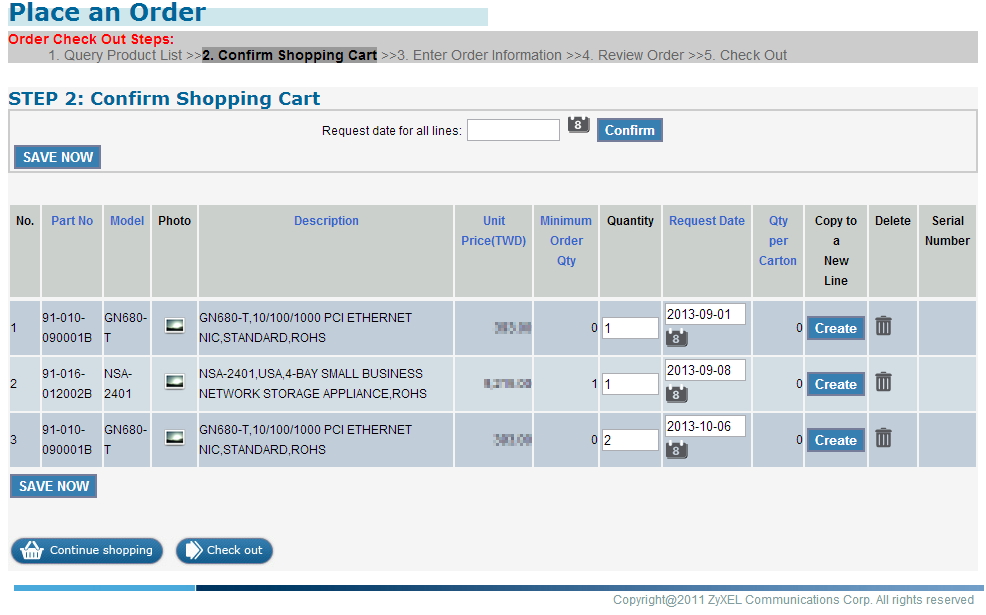
Please enter the request date by clicking on the calendar icon, and a calendar will pop up so that you can click the date you want to enter. "Quantity" and "Request Date" are required to continue the check out process. Also, the "Quantity" has to be equal to or larger than minimum order quantity, and the "Request Date" has to be after today.
If you want to copy a line for entering different request date or quantity, please click on the "Create" button on the "Copy to a New Line" column of the line you want to copy. A new line will be created after the page is refreshed.
To delete a line, please click on the trash can icon on the "Delete" column of the line you want to delete.
To check out items, please entering "Quantity" and "Request Date" first, and when you press the "Check out" button, the system will move to the next step with the items that have valid quantity an request date. To save items in your shopping cart to check out later, please simply just don't put request date and quantity.
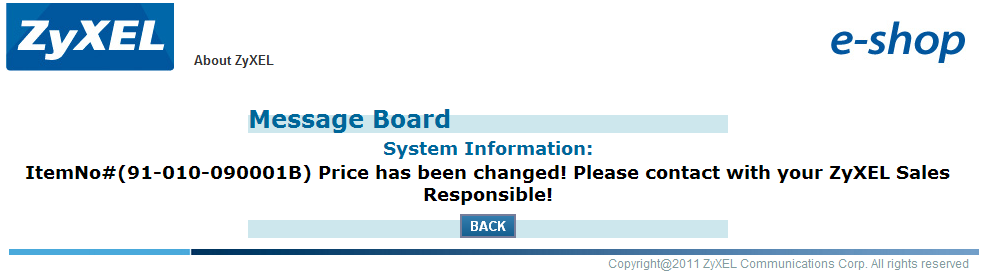
If you saved items in shopping cart to check out later, there is one thing you have to be careful. The price of items maybe will be updated during the time while the items staying in the shopping cart. So, when you put in valid quantity and request date and then press the "Check out" button to check out the items later, the price is not updated. You will see the page that looks like the picture below. It means the price of the part number which is showed on the page is not updated. Please click on the "Back" button to go back to the shopping cart page, and delete the item from shopping cart list. Please click "Continue shopping" button to go back to the product list page to add this item to shopping cart again, or to click "Check out" to continue the check out process without this item.
Created with the Personal Edition of HelpNDoc: Easily create Web Help sites