Invoice and Packing


Invoice and Packing
Please follow these steps to view invoice and packing infromation:
1. Please find and click on the "Invoice and Packing" tab on menu bar as picture below.
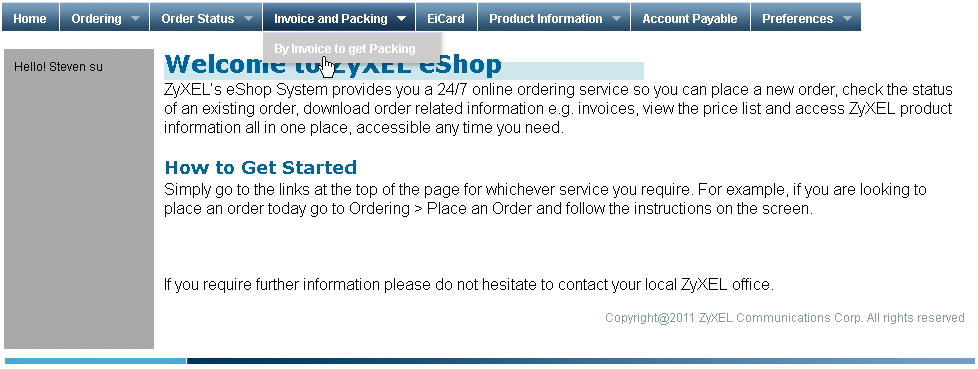
2. You will see a form that looks like the picture below. You can set some search criteria by invoice number and actual shipped date. Please click on the calendar icon to enter dates. A small calendar interface will pop up and you can pick a date. The date will show in the text box after you picked. When you finish entering the search criteria, please click on the "Enter" button. If you want to search for all, please leave all search criteria blank and click the "Enter" button.

3. The list of packing will show in a table under the search form which is as the picture below

The system can export this data table to a Excel file as you wish. Please click on the "Excel" link under the data table to open a message window and click on "Save" to save it on your local computer. You also can view details information of "Serial(Firmware)", "Invoice", "Packing" or "Shipping" by clicking the button under the "Operation" column of the line. If there is no data to show, the button will be disabled. If a button is clickable, a new window will open to show the information. When you are done with viewing the information, please click on the "X" on the browser to close the window.
4. Here is a example picture of the Serial(Firmware) data table. If you want to download the data, please click on the "Excel" link under the data table and save it on your local computer.
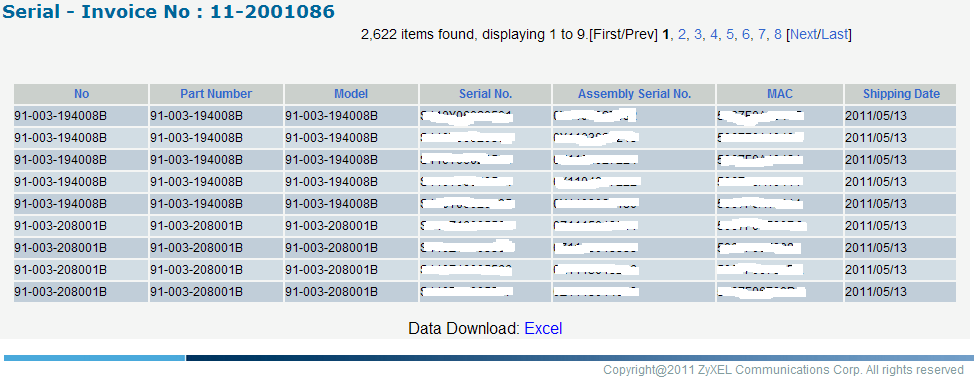
5. The Invoice data table looks like the picture below.
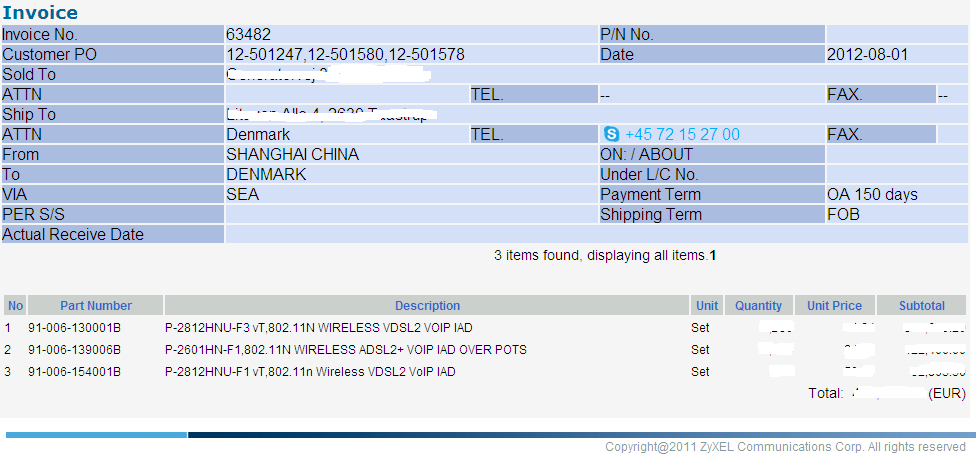
6. When you click on the "Packing" button, it actually will export data to a Excel file, so it will ask you to save it or open it in Excel to view. You can choose either one. The packing data in Excel is similar to the picture below

Created with the Personal Edition of HelpNDoc: Produce Kindle eBooks easily